
Changelog

What’s new in Lattio.

v0.1.7

Write on the page and the canvas

Circle a passage on a PDF, sketch a connection between your notes, or put the document on the left in Study mode.
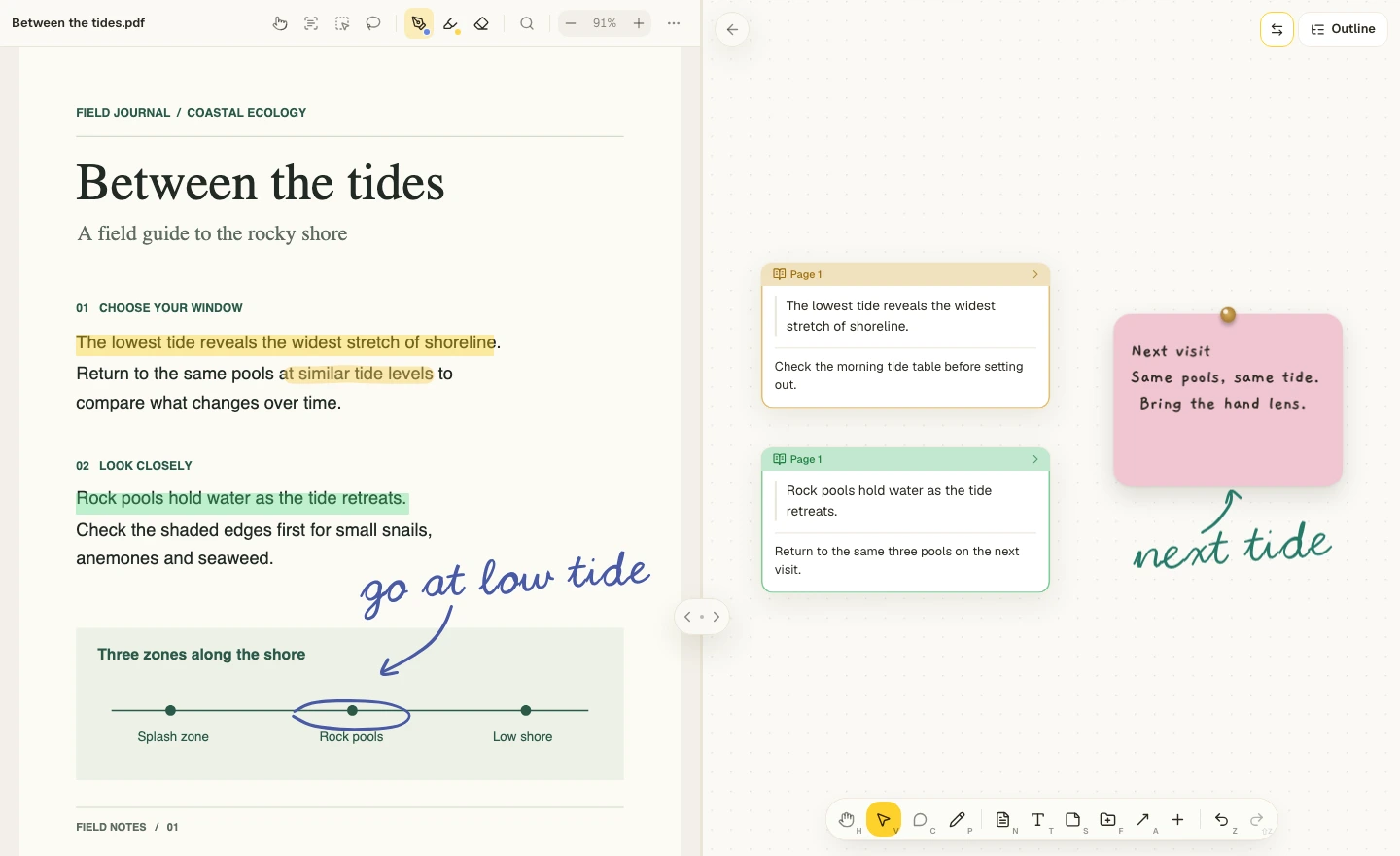
A PDF with highlights and a blue handwritten annotation, beside excerpt cards on the Study mode canvas.
Study mode with the PDF on the left and the notes canvas on the right.
  • Handwriting on the canvas and in PDFs

    Draw with a stylus or mouse. Choose a stroke style, hold at the end of a stroke to straighten it, and erase a whole stroke or just part of it. In PDFs, you can also highlight freehand and export your ink with the document.

  • Put the document on the left

    Use the swap button in Study mode to put your document on the left and your notes on the right. Lattio remembers your choice.

  • Open Handwriting with P

    Press P on the canvas to start writing. Click a tool to select it, then click it again for settings such as color, stroke width, or eraser size.

  • Simpler theme choices

    The border marks your selected theme in Appearance settings.
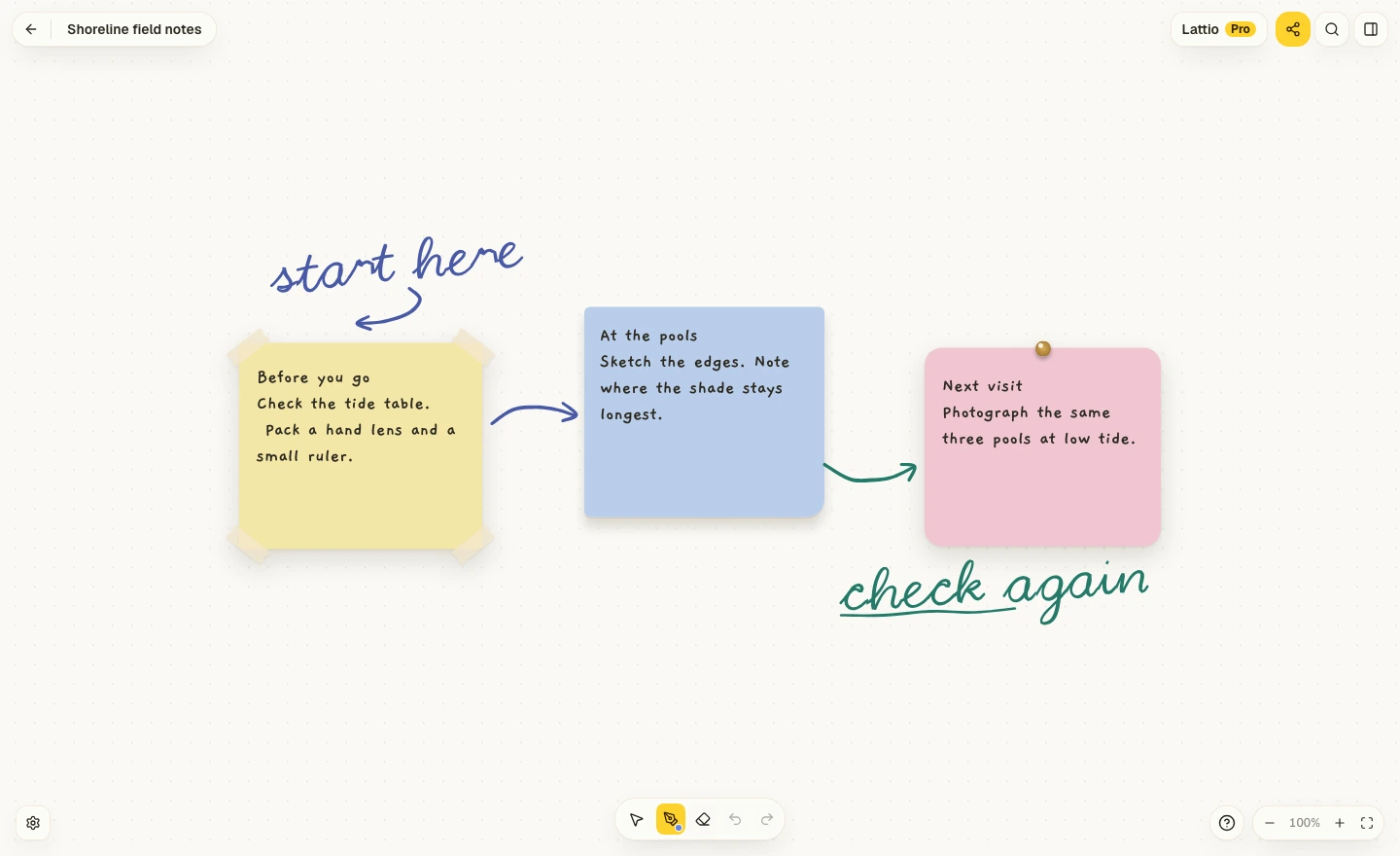
Three field note cards connected by freehand arrows and annotated in blue and green cursive.
Handwriting alongside cards on the canvas.
v0.1.6

Smoother zooming on macOS

The custom cursor takes less work to draw, so zooming feels smoother in the Mac app.

v0.1.5

Clearer canvas controls

Image cards open on double-click, canvas tools keep their working cursors, and the frosted toolbar returns in production builds.

v0.1.4

Find text while reading a PDF

Search within the open PDF in Study mode. On smaller screens, settings open as a bottom drawer.

v0.1.3

A clearer desktop sign-in

The browser confirms sign-in and opens Lattio when you return to the desktop app.