
In short
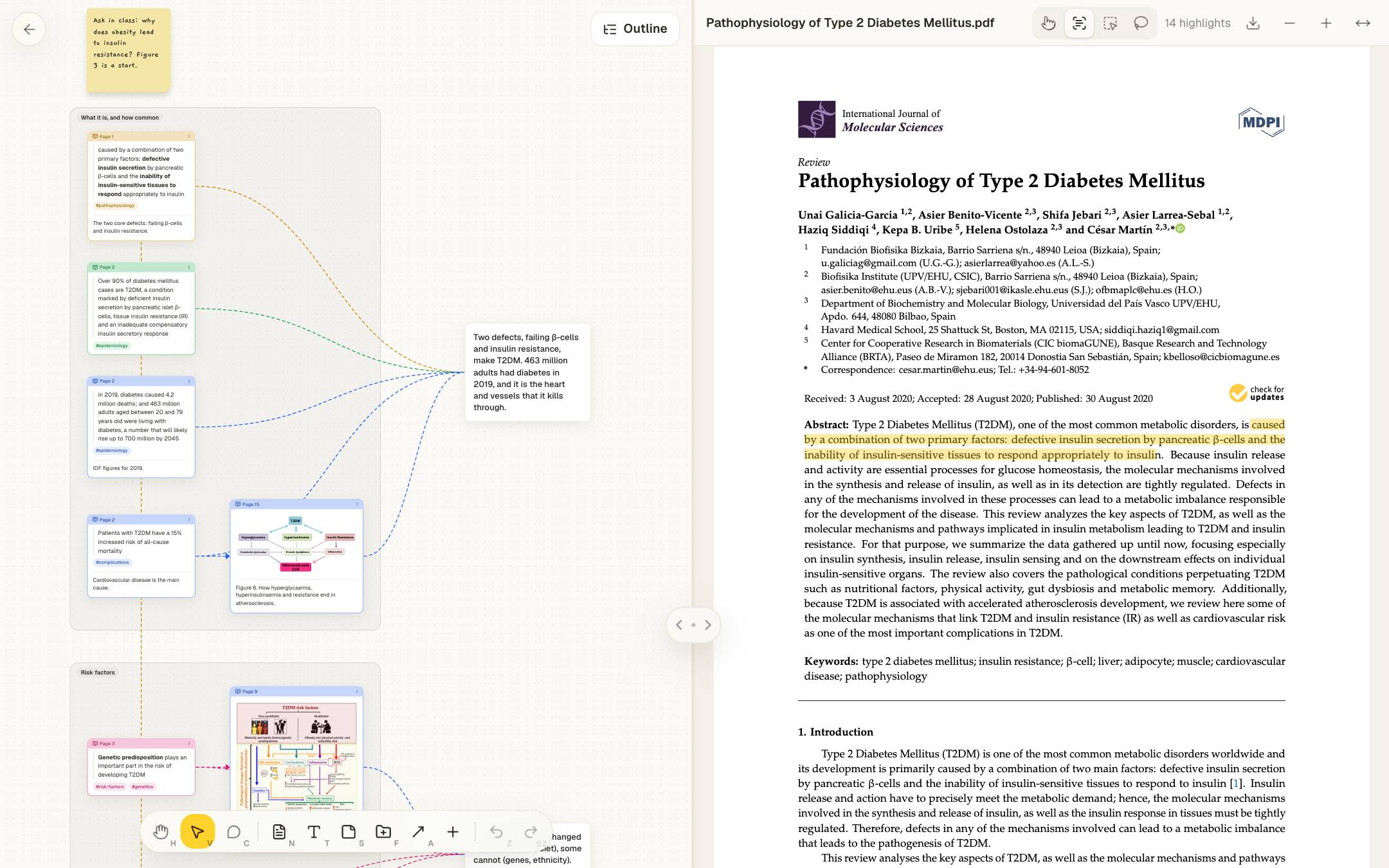
- In a PDF reader, highlights stay inside one file. On a canvas, every highlight becomes a card you can move next to highlights from other papers.
- Each excerpt card remembers its page: one click scrolls the PDF back to the passage.
- Group excerpts, add a summary in your own words, and draw what depends on what. The same canvas reads as an outline when you write.
- Lattio keeps your PDFs and notes on your device. An account and cloud sync are optional.
Why highlights in a PDF reader get lost
A PDF reader is good at reading one paper. Its highlights and margin comments, though, stay inside that file. A month later, when you are writing and need the sentence about effect sizes from the third paper, you open five PDFs and scroll.
Copying quotes into a document helps you find them, but loses two things: where each quote came from, and how the quotes relate. A list of quotes doesn’t show that one finding explains another, or that two papers disagree.
Research notes on a canvas keep both. Each highlight is a card that points back to its page, and you place the cards so their arrangement says how the ideas connect.
Read the PDF beside its notes
Drop a PDF on a canvas and click it. Lattio opens study mode: the PDF on the right, and on the left a canvas for that paper’s notes (a folder made next to the PDF the first time you study it). The two stay side by side while you read, and you can widen either one or give one the whole window.
Open the PDF annotation demo and read the walkthrough.
The passage is highlighted in the PDF and an excerpt card with its text appears on the notes canvas. It is one step: undo removes both.
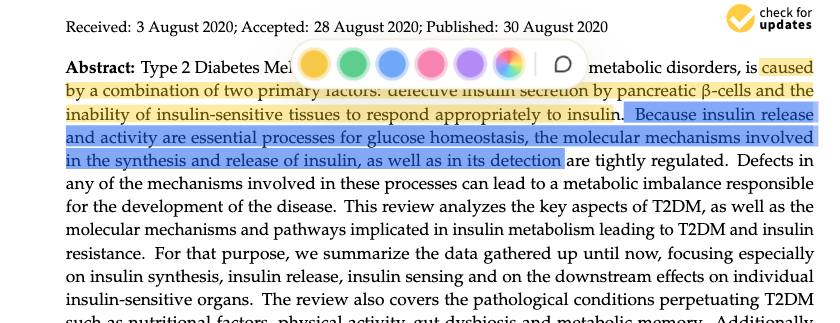
Draw a rectangle or a lasso around a figure to make it a picture excerpt. Use the “highlight only” tool when you want to mark a passage and comment on it without making a card yet.
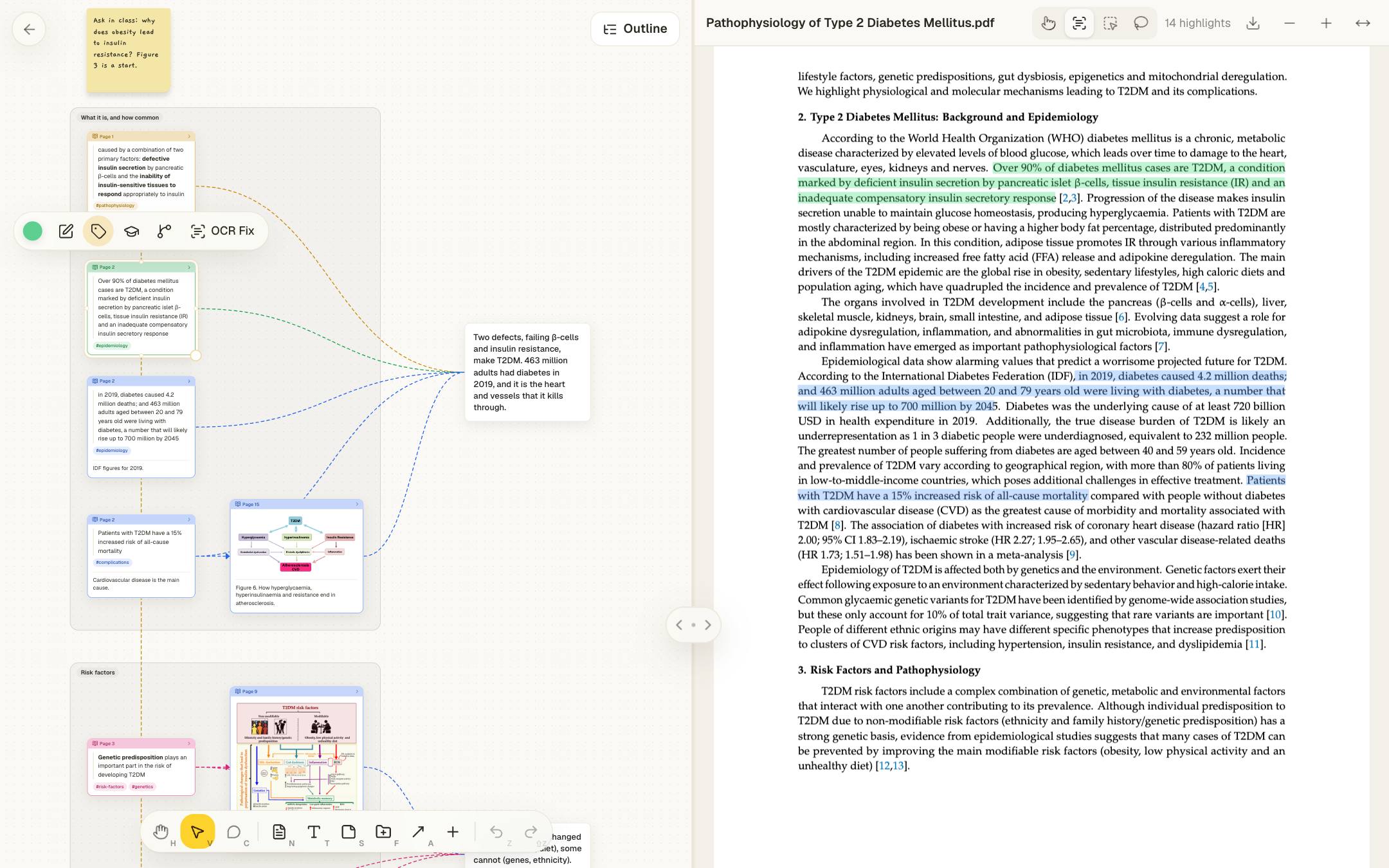
Every excerpt card shows its page. Clicking it scrolls the PDF to the passage, so checking a quote takes a second.
The same works for web articles (turned into clean text with “Read and highlight” on a link card), EPUB books and videos, where an excerpt marks a moment instead of a page.
Turn excerpts into an argument
Excerpts are raw material. Three tools on the excerpt toolbar turn them into something you can write from:
- Group puts the selected excerpts in a titled group (“What it is, and how common”, “Risk factors”) that stays fitted around its cards as you add or move them.
- Summary adds a text card joined to each selected excerpt. Write there, in a sentence or two, what the passages say together.
- Dependencies: drag an excerpt onto another to say it follows from it. Lattio draws the line and lines the card up beside the one it depends on.
Auto layout then arranges the canvas as a mind map, summaries beside their groups, and tags (#epidemiology, #risk-factors) let you find every excerpt on a theme across papers.
| Task | In a PDF reader | In Lattio |
|---|---|---|
| Where highlights live | Inside each PDF | In the PDF and as cards on a canvas |
| Comparing papers | Several windows, or copy and paste | Excerpts from different papers side by side |
| Checking a quote | Search the file again | Click the card |
| Structure | None beyond the page order | Groups, summaries, dependencies, outline |
Scanned PDFs and formulas
A scanned paper is a picture of text: nothing to select. With text recognition Pro, Lattio reads the scanned pages (with Apple’s Vision in the Mac app, and Tesseract in the browser), after which you select, highlight and search them like any PDF. OCR Fix on an excerpt reads it again from the page, turning a cut-out formula into LaTeX you can edit and a cut-out paragraph into text you can correct.
From reading to remembering
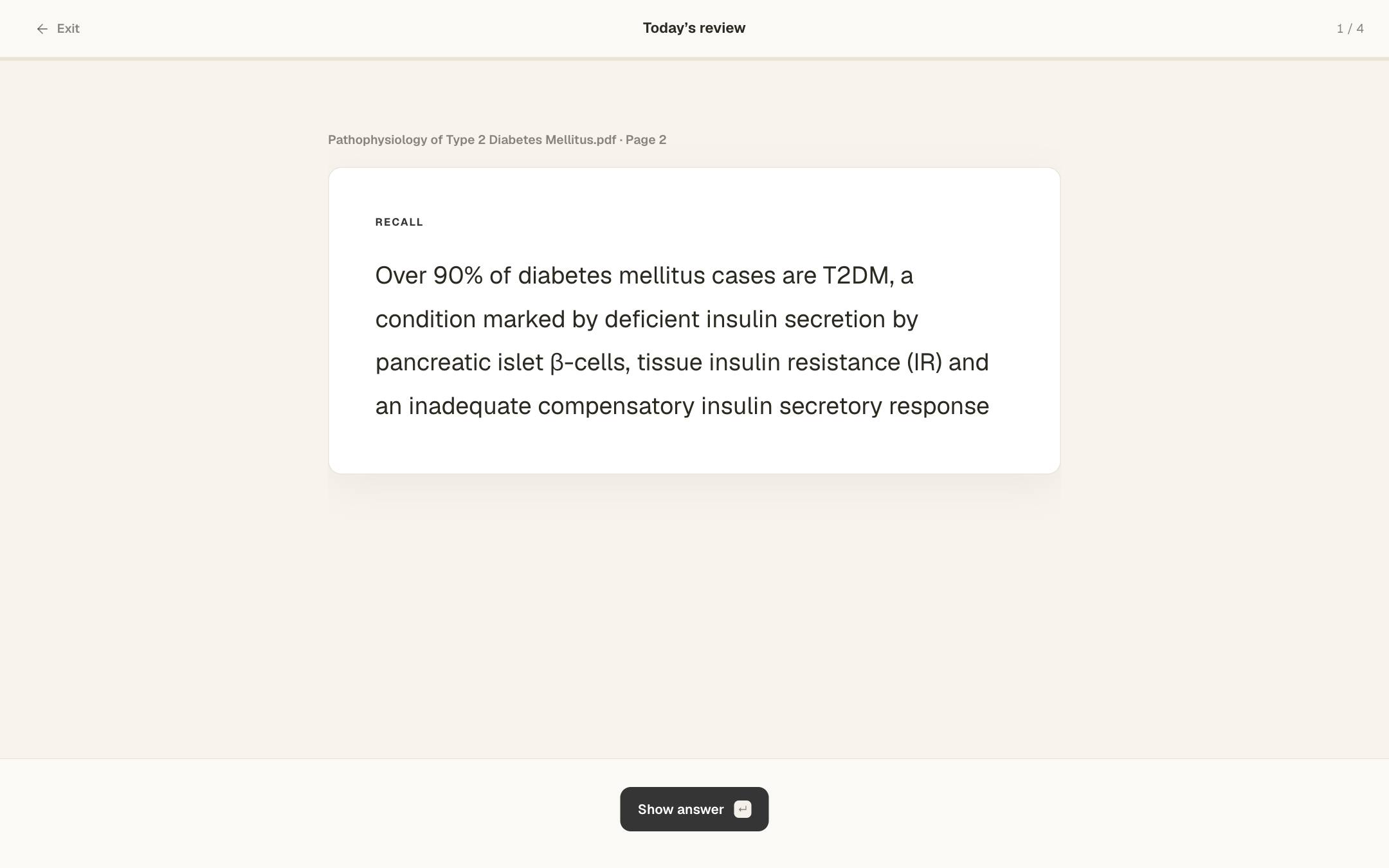
Add an excerpt to review from its toolbar. Review mode shows it as a card to recall: words you marked in bold or underlined become blanks to fill in. Lattio schedules each card again by how well you remembered it, so the ones you know come back less often. Progress charts and export to Anki are part of Pro.
To compare many papers at once, read the guide to doing a literature review on a canvas.
Frequently asked questions
Can I annotate scanned PDFs without selectable text?
Yes, on Pro. Text recognition reads scanned pages (Apple Vision in the Mac app, Tesseract in the browser), after which you can select, highlight and search them like any other PDF.
Are my research papers uploaded to a server?
Not unless you turn on cloud sync. Lattio stores PDFs, highlights and notes on your device, in the browser or in a local database in the desktop app.
Can I get my highlights out of Lattio?
Yes. Download the PDF with your highlights drawn in, export notes as Markdown, or (on Pro) export a paper’s outline as Markdown or OPML and its review cards to Anki.
How many PDFs can I study on the free plan?
Five things in study per space on Free (PDFs, articles, books or videos), and as many as you like on Pro. Reading and highlighting are included in both.
Start thinking spatially with Lattio
Notes, PDFs, and ideas on an infinite canvas. Free, offline-first, and stored right on your computer.