
In short
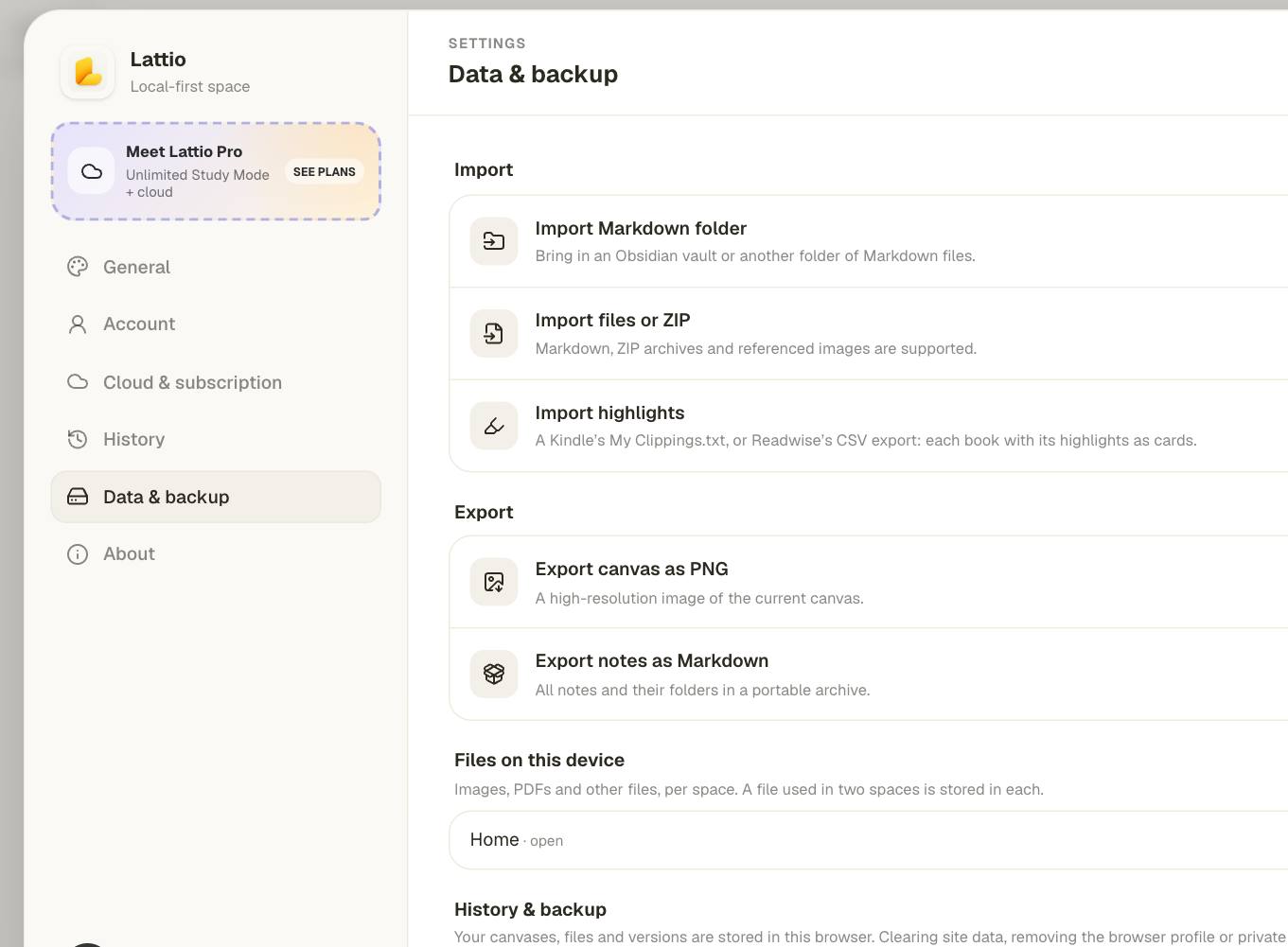
- Settings → Data & backup → Import Markdown folder brings in a whole vault: folders become folders, notes become note cards.
- [[Wikilinks]] (with aliases, headings and paths) become links between the imported notes; embedded images come along.
- On the canvas you arrange notes by hand, next to PDFs and excerpts, instead of reading a force-directed graph.
- Export writes Markdown with [[wikilinks]] plus a .canvas file per canvas that Obsidian opens.
Graph view or canvas?
Obsidian’s graph view shows that notes are linked, but you don’t decide where anything goes: the layout is computed, and it changes as the vault grows. That makes it hard to use the graph to think, to put an argument in order or keep “to read” apart from “done”.
On a canvas you place every card yourself, and the arrangement stays. Lattio adds what a research workflow needs around it: PDFs read beside their notes, excerpts that link back to their page, and review.
Import a vault, step by step
Choose Import Markdown folder and pick your vault (or any folder of Markdown files). Import files or ZIP takes loose files or a zipped vault instead.
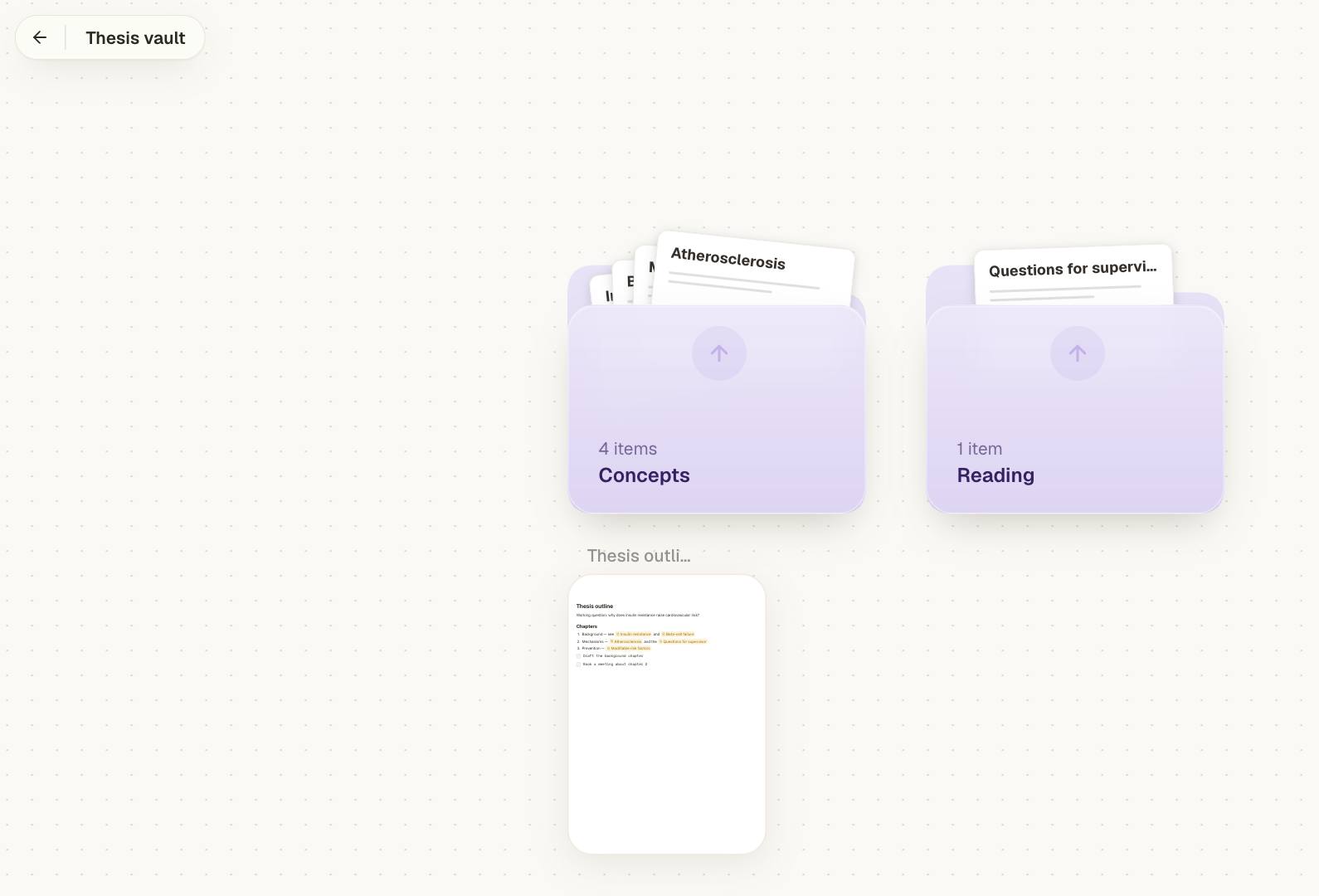
The vault arrives as a folder on the current canvas. Each subfolder is a folder card, opened with its arrow, and each .md file is a note named after the file.
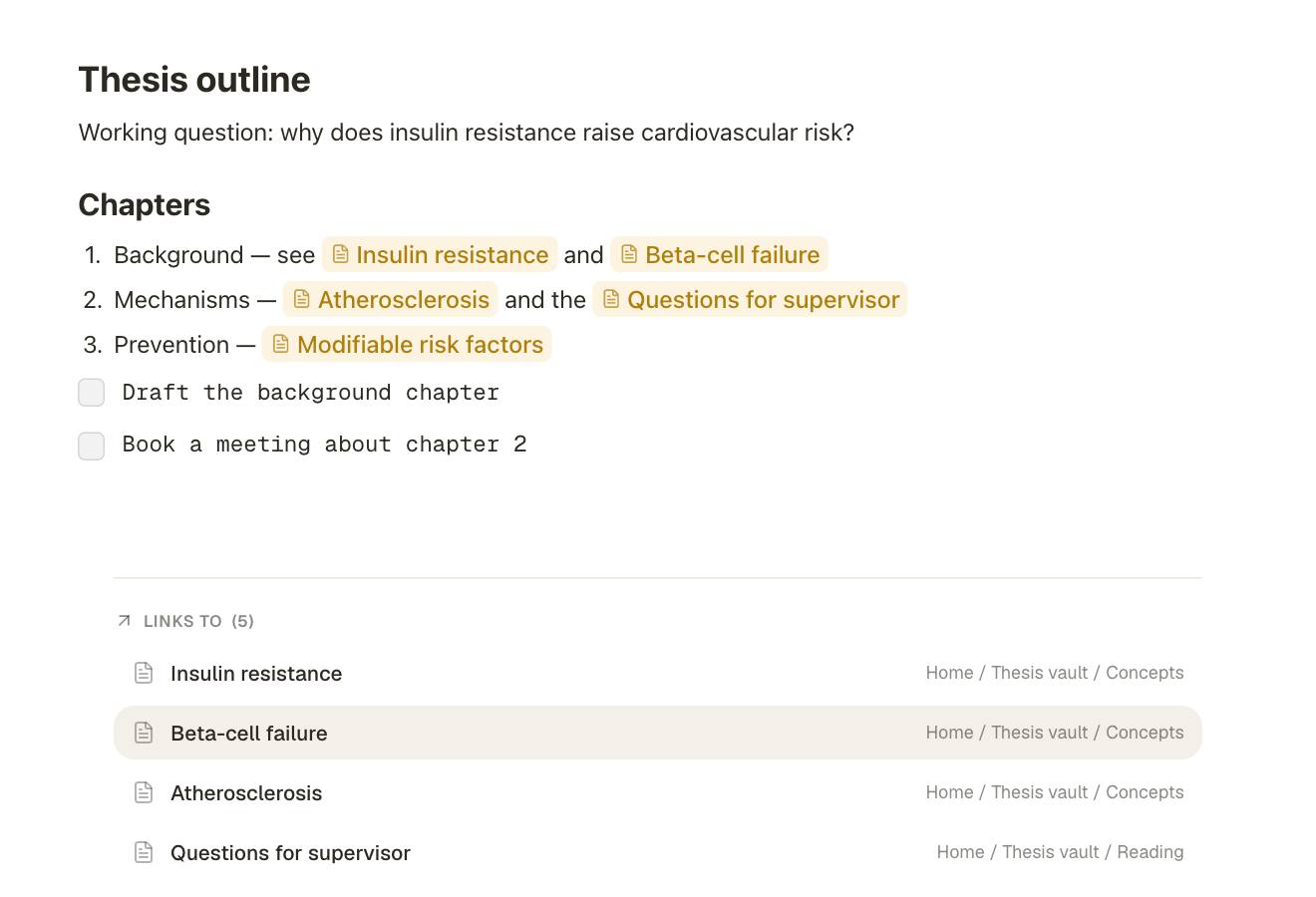
[[Note]], [[Note|alias]], [[Note#heading]], [[folder/Note]] and relative [text](other.md) links become links between the imported notes. Images shown with ![[image.png]] or  are imported with them. Links to notes that aren’t in the import stay as text, and Lattio tells you how many there were.
You can also drag Markdown files straight onto a canvas. And to bring in highlights rather than notes, use Import highlights (Kindle or Readwise).
Working with imported notes
Imported notes are ordinary Lattio notes. Click one to edit it full screen; type [[ to link to any note or canvas in the space. Under each note you see what it links to, what links to it, and related notes that share its tags or wording.
Then use the canvas for what the graph view couldn’t do: drag the notes of a chapter into a section, draw labeled arrows for your argument, put the PDFs you cite next to them and study them in place.
Taking notes back to Obsidian
Export notes as Markdown (Settings → Data & backup, or a canvas’s menu) downloads a zip in vault form: folders as folders, notes as .md files, links written as [[Title]], and images in an attachments folder. Each canvas also gets a .canvas file in the open JSON Canvas format, which Obsidian opens with your cards where you left them.
| In your vault | In Lattio |
|---|---|
| Folder | Folder card, a canvas of its own |
Note.md | Note card |
[[Note]], [[Note|alias]] | Link to the note, shown with its label |
![[image.png]] | Image in the note |
#tag | Tag, searchable with ⌘K |
Board.canvas (on export) | The canvas, cards and arrows included |
For ways to keep a large canvas readable, see infinite canvas note-taking.
Frequently asked questions
Does importing change my Obsidian vault?
No. Lattio reads the files and makes its own copy; the vault on your disk is left as it is.
Do [[wikilinks]] keep working after the import?
Yes. Links between imported notes, including aliases, headings and folder paths, become Lattio links. Typing [[ in a note links to any other note or canvas.
Can I open my Lattio canvas in Obsidian?
Yes. Export notes as Markdown: the zip holds your notes and, for each canvas, a .canvas file in the JSON Canvas format that Obsidian’s Canvas opens.
Is the import free?
Yes. Markdown import and export are on every plan, Free included.
Start thinking spatially with Lattio
Notes, PDFs, and ideas on an infinite canvas. Free, offline-first, and stored right on your computer.